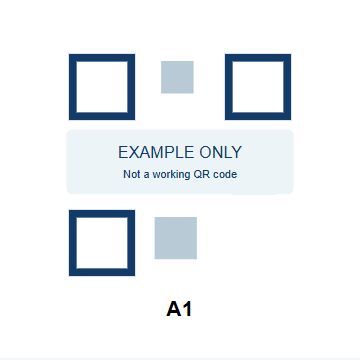
Check what goes inside.
Recheck the products, variants and quantities as you pack. The tote QR identifies the order’s bin; it does not identify the products inside.
TOTECUE / FEATURES
Keep physical work organized, make checks deliberate, and give follow-up a place to live.
Shopify features are shown below. See External stores for the import workflow and its specific checks.
01 / PICKING & HANDOFFS
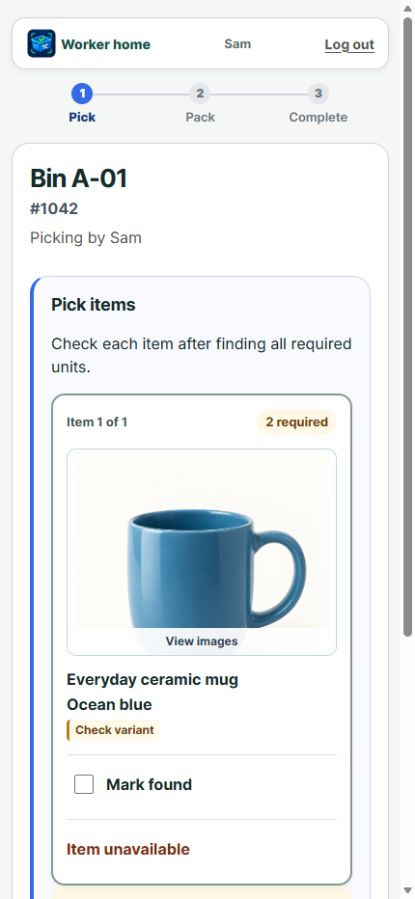
Use product pictures, variants and quantities to pick into one reusable, QR-labeled bin. Pack it yourself or hand the same tote to the next worker.
02 / PACKING CHECKS & EVIDENCE
Confirm products and quantities before recording completion. Choose photo policies and supported tracking-label comparison to fit your process.
A tracking match compares references; it does not validate an address or prove carrier pickup. Photos record evidence, not a guaranteed dispute outcome.
Choose checks and resolve a mismatch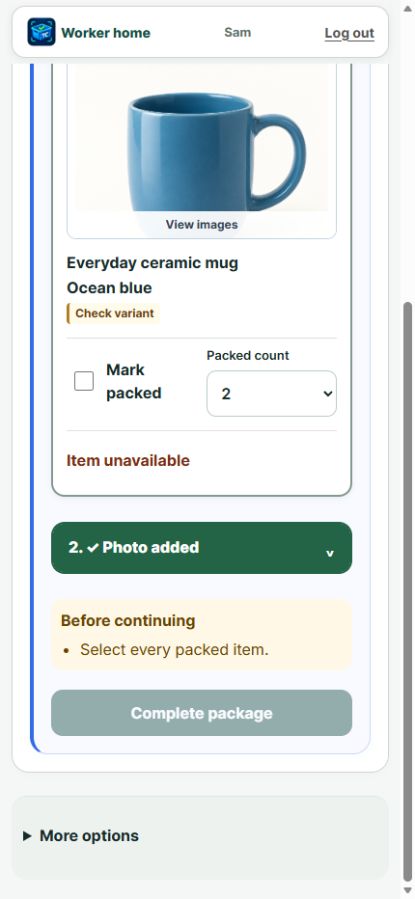
EXTERNAL STORES
ToteCue is built around its full Shopify integration. Additional external-store support uses CSV imports with specific limits. Prepare labels and grouping in the selling platform, then review the files in ToteCue before picking and packing.
Shipping purchase, printing and marketplace fulfillment remain in your selling platform or shipping tool.
Workflow illustration. External CSV support has platform-specific limits. Each store’s packages stay separate.
PACKING / THREE USEFUL CHECKS
Make the final check part of the work. Shopify uses your configured photo and label policies. External packages require a saved photo, confirmed contents and full tracking capture.
Recheck the products, variants and quantities as you pack. The tote QR identifies the order’s bin; it does not identify the products inside.
For Shopify, use optional, required or rule-based packing photos. External packages require a photo. Wait for saved confirmation: a camera preview alone is not recorded evidence.
Compare a supported shipping-label tracking reference with the order’s reference when configured. A match does not validate the address or prove carrier pickup.
Workflow illustrations, not app screenshots. Photos document the package; they do not automatically verify its contents.
Choose your packing checks ↗WHEN THE SHELF AND SHOPIFY DISAGREE
A picker discovers an unavailable item. A refund accidentally puts it back into sellable stock. Or the last unit leaves the shelf while Shopify still shows more. ToteCue gives each situation a clear follow-up.
Package paused for review
UNAVAILABLE ITEM / DO NOT RESTOCKAfter you cancel, refund or remove the unavailable item in Shopify, choose Check Shopify status and stock in ToteCue. ToteCue reads Shopify’s available inventory quantities for the affected product across tracked locations and checks whether Shopify still shows stock available to sell.
Packing can continue
LAST PHYSICAL UNIT / AUTOMATIC STOCK CHECKWith Last-unit stock check enabled, the worker selects Picked the last unit → Confirm & check stock. ToteCue automatically checks Shopify’s available inventory.
If Shopify still shows stock, or the check cannot be confirmed, it raises a stock review. Picking and packing can continue while the owner follows up.
Catch a possible mismatch while someone is already at the shelf. Available stock at another location may be correct; the review helps you investigate.
Understand the last-unit check ↗Checks the reported product
Returns available quantities
and selling policy
Stock available, sales allowed at zero,
or the check cannot be confirmed
Otherwise: ToteCue shows no available stock when quantities are zero or less at every tracked location and selling past zero is disabled.
Workflow illustration, not an app screenshot. A stock result does not by itself close the issue.
Positive stock at another location may be legitimate; ToteCue flags it for review. ToteCue checks and records follow-up. Refunds, cancellations and inventory corrections remain store actions in Shopify; these checks do not guarantee prevention of overselling.
03 / OWNER OVERSIGHT
Needs attention brings reported problems and stock follow-ups into an in-app review list. Analytics separates recorded stage time from waiting so you can interpret the work.
Check the list regularly. It is not a promise of email or text alerts. Refunds and inventory corrections remain in Shopify.
Review and resolve issues Understand analytics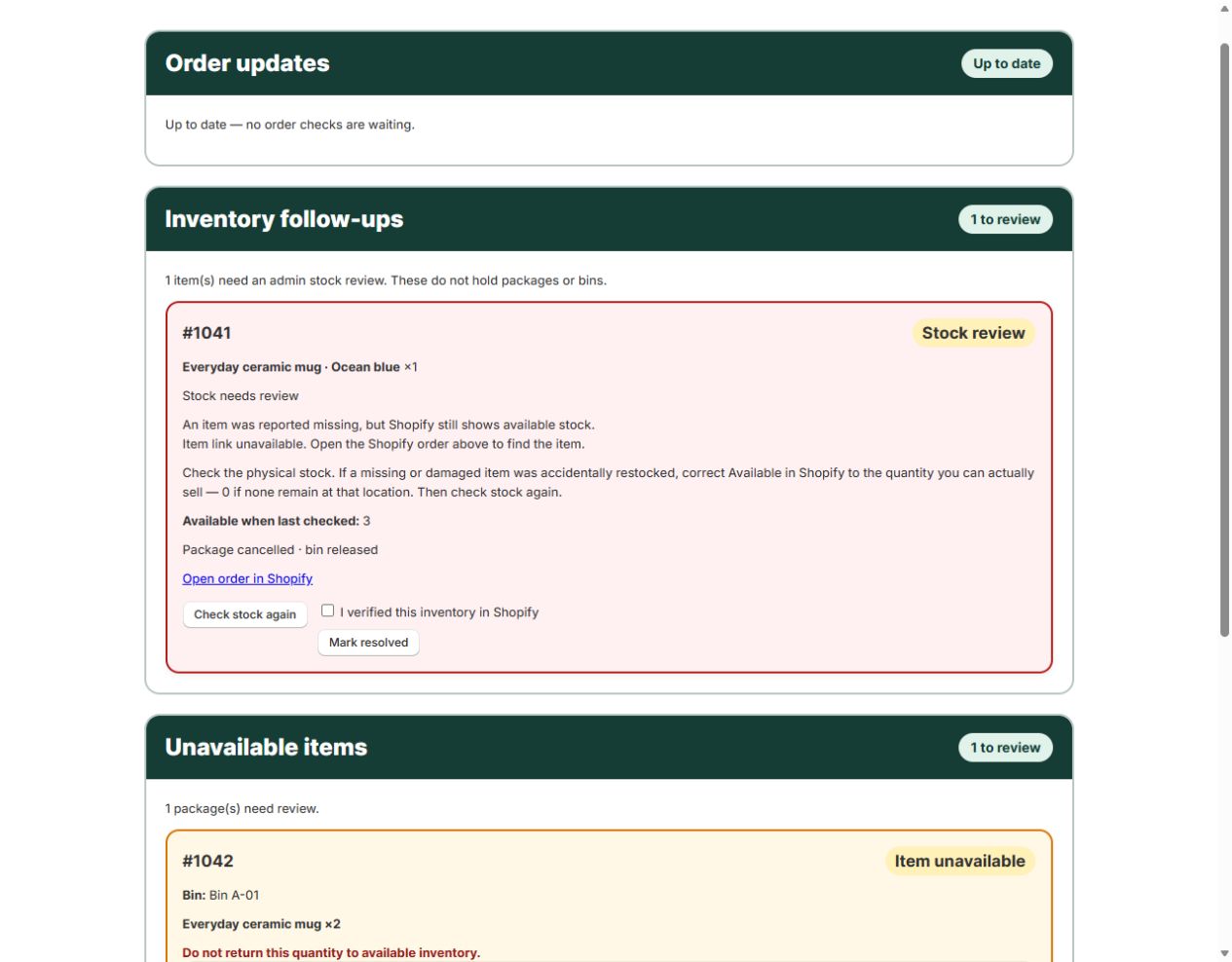
SHOPIFY ANALYTICS / UNDERSTAND THE WORK
Is work building up before picking, or waiting for a packer? See completed packages, elapsed picking and packing times, and waiting time in one view.
Compare periods and sample counts to investigate workload and handoffs with your team. Current packing metrics cover Shopify work; external packing totals are not included.
Stage times can include pauses. Waiting includes closed hours. These numbers provide context, not a ranking of worker efficiency.
Read the analytics guide ↗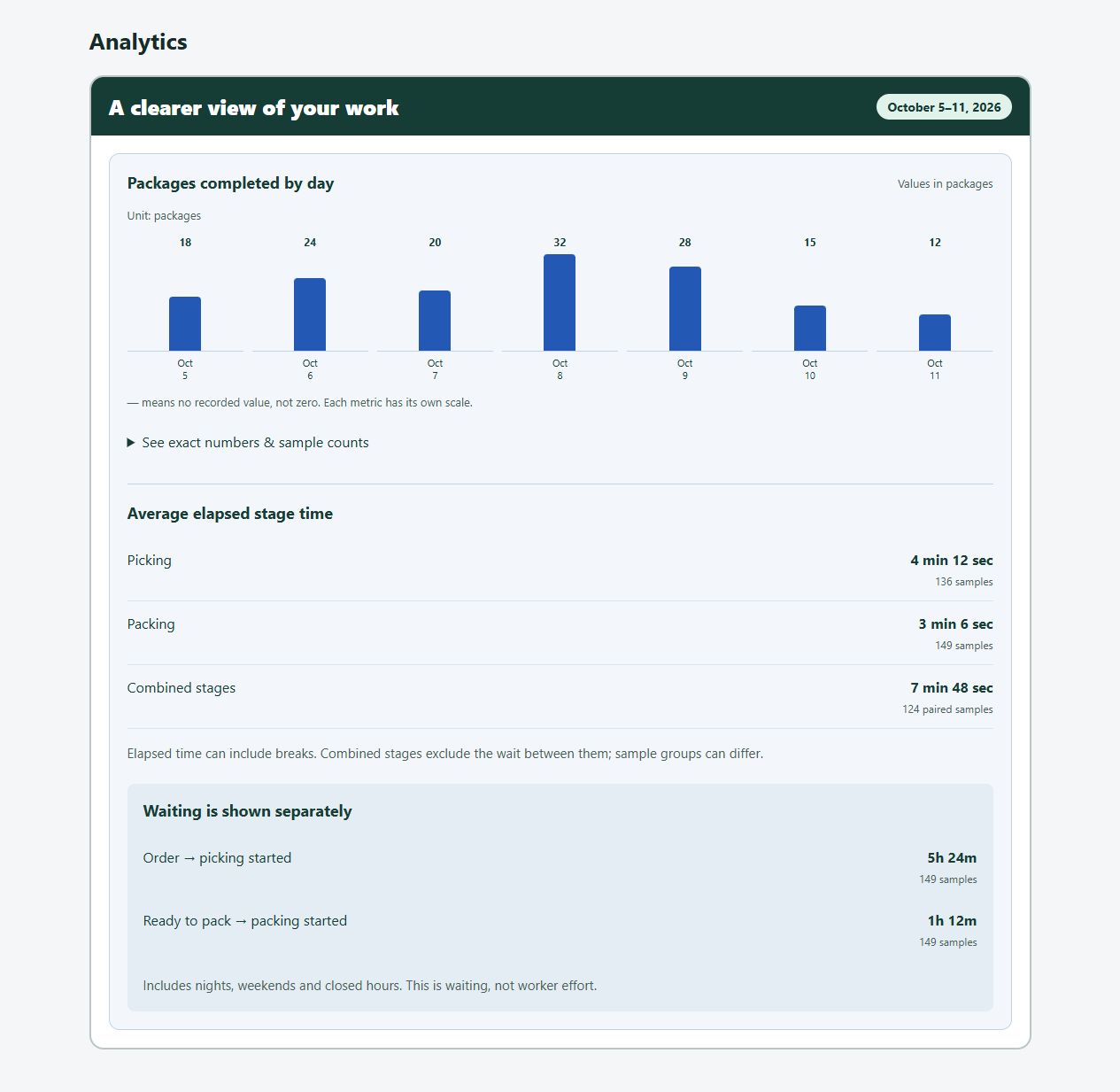
CUSTOMER RETURNS / SEE WHAT CAME BACK
When a customer sends items back, record the package’s arrival, check the returned items and save their condition. Receive several packages first and check them later, or handle one return from start to finish.
Your administrator reviews the saved inspection and accepts it or asks for corrections. Refunds and stock changes are handled separately in Shopify.
Workflow illustrations, not app screenshots. Customer returns are separate from the return of products out on loan.
PRODUCT LOANS / CREATORS & CAMPAIGNS
Sending products to influencers, social media creators or a photography shoot? Keep temporary marketing loans separate from customer orders, with a record of who has what and when it is due back.
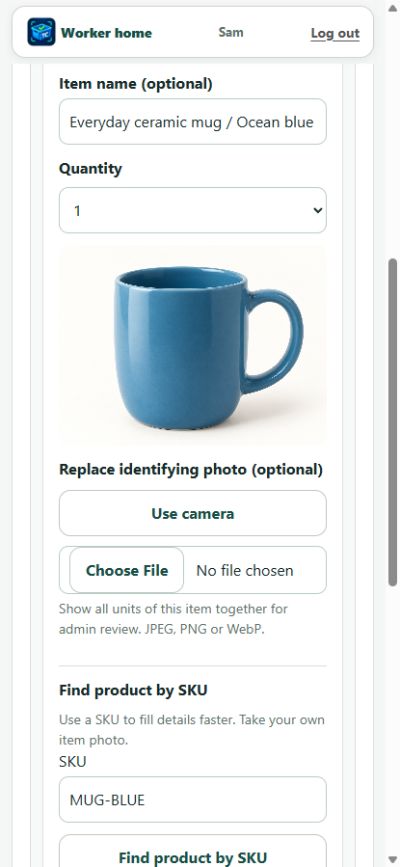
The admin specifies the products when creating the loan. Useful for a planned influencer package or campaign with a defined item list.
The admin lets a worker choose and record items during preparation. Useful when assembling samples from available stock, with identifying photos of the selected items.
Item selection and shipping approval are separate choices. Either path can use Pack and send or Photo review before shipping.
Workflow illustrations, not app screenshots.
MADE FOR THE WAY YOU WORK
Pick and pack yourself, or hand the same tote to a teammate. Both arrangements keep packing as a separate check.
Need someone to continue midway? Follow the worker-handoff steps
YOUR NEXT STEP
Find ToteCue on the Shopify App Store and see how it fits your store.