CUSTOMER GUIDE / UPDATED OCTOBER 2026
Handle issues and customer returns
In this guide
Use Needs attention for outbound problems and Customer returns for packages customers send back. These are separate tasks.
Before you start
For your first run, ask your store administrator which packages to use. Workers need an enrolled device and appropriate permissions. Administrators need Shopify access for order, refund or inventory corrections. A follow-up is a saved task that still needs someone to finish it.
See what needs your attention
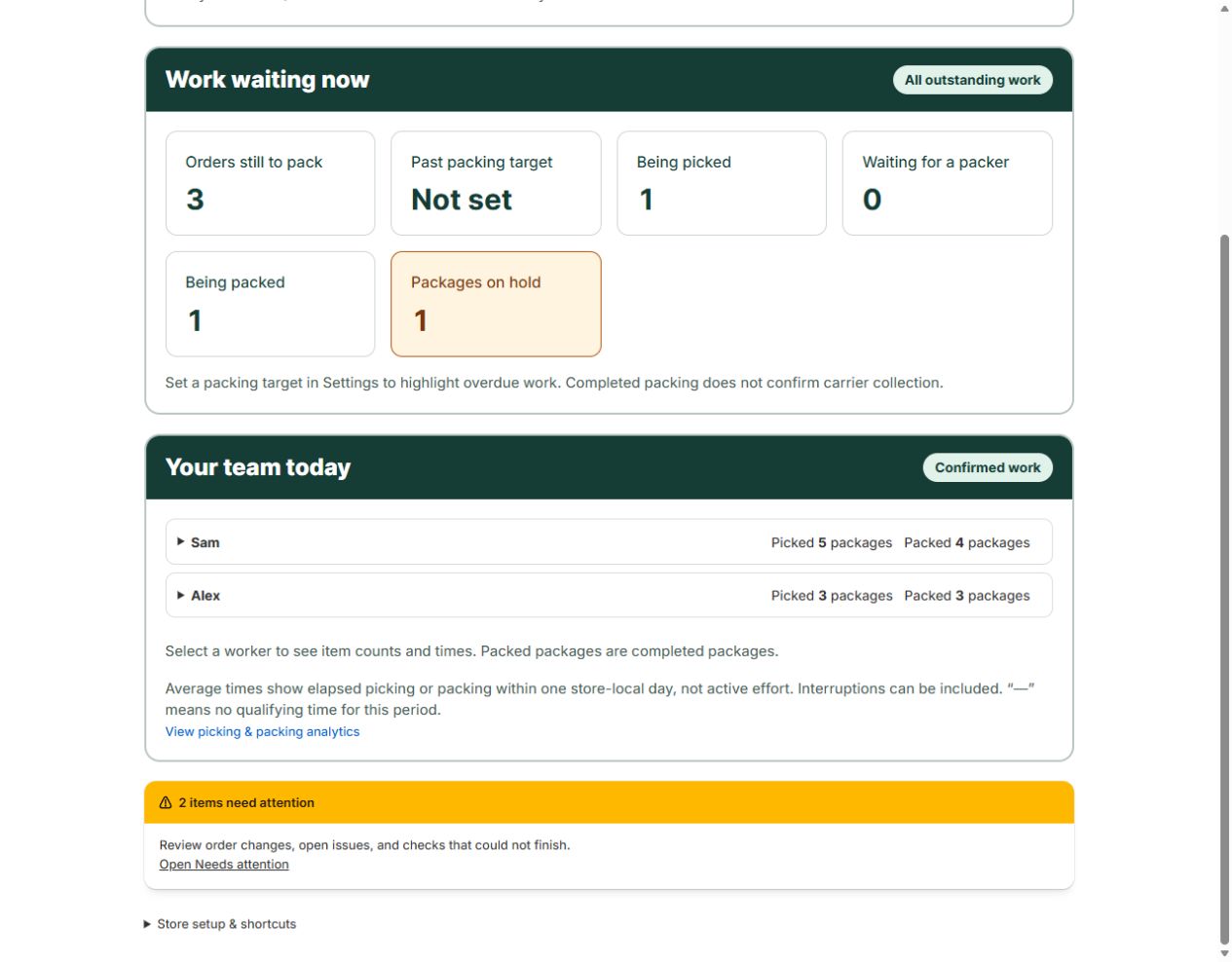
Admin Home shows an attention warning when work needs review. Choose Open Needs attention, or open Needs attention from the app menu, to see reported problems and follow-ups. Cards identify the affected work and show the next action.
Check this page at the start of the day and regularly while workers are picking and packing. Ask them to tell you directly about urgent problems too. The list makes saved reports visible inside the app; do not expect an email, text or phone alert for every issue.
Some issues hold a package and keep its bin assigned. Inventory follow-ups and Stock review can remain open without blocking packing. Tracking overrides are reviewed in package History and Analytics, rather than automatically creating attention tasks. Refunds, cancellations and stock changes still need an authorized person in Shopify.
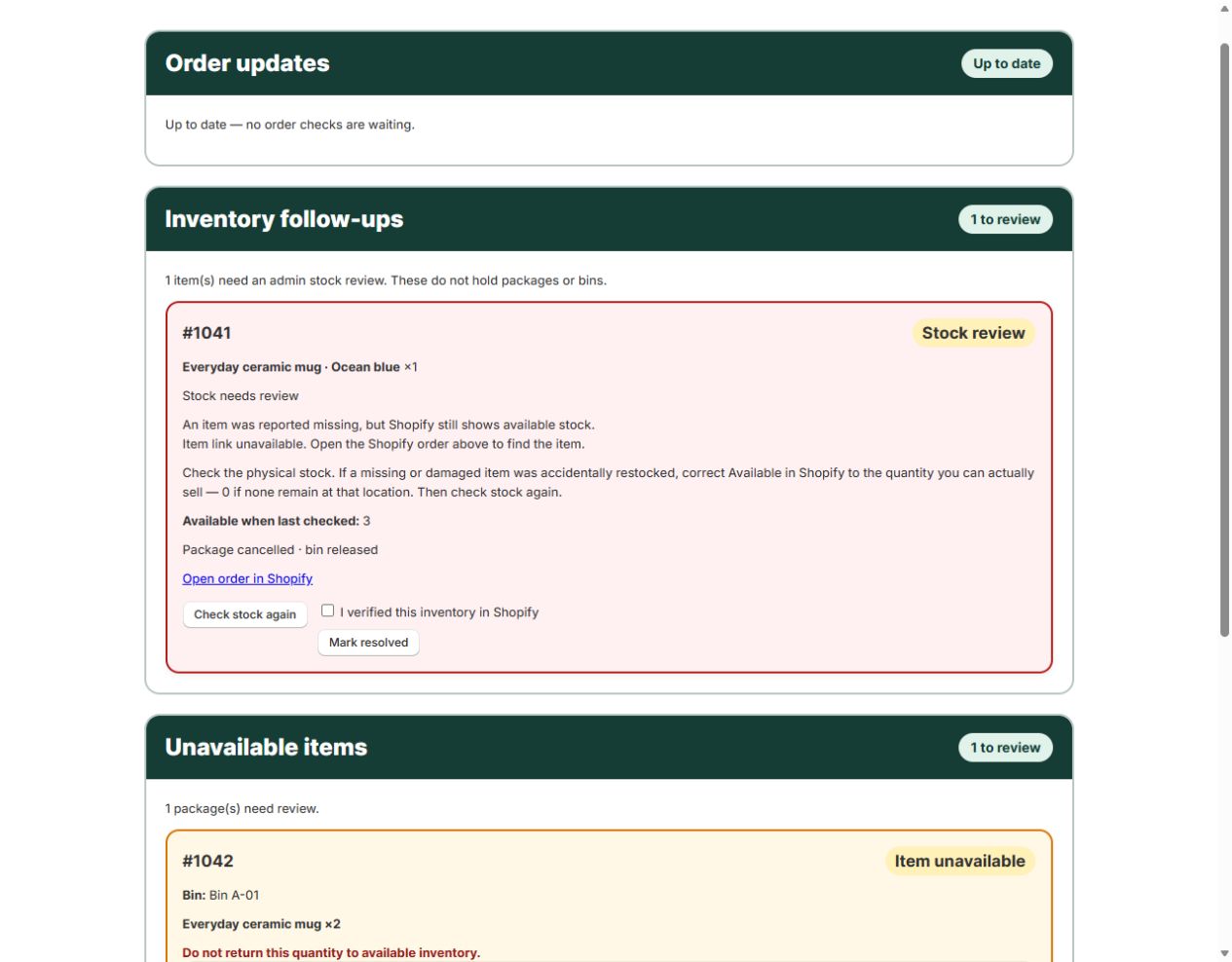
An item is unavailable
- In the worker’s product line, choose Report unavailable item.
- Record the unavailable quantity and reason, then choose Report & pause package.
- Keep the tote with its order while the package is held. If the item is found, record that resolution and resume; otherwise ask the administrator to review Needs attention.
This makes a missing or damaged last item visible before another picker encounters the stock mismatch. ToteCue does not automatically prevent a stockout or make the Shopify correction.
Resolve a held package
Watch how to review and resolve worker reports.
- An administrator saves any required refund, cancellation or item removal in Shopify. Do not restock units that cannot be sold.
- In Needs attention, choose Check Shopify status and stock.
- If Shopify still shows unavailable units as sellable, correct the affected location’s available quantity in Shopify. Set it to zero only if no sellable stock remains; positive stock can be legitimate.
- Choose Check Shopify stock again.
- Once the check is green and the order change is confirmed, choose Finish package and release bin when offered for this held package.
A stock check alone does not close the issue. If a check fails, leave the follow-up open, correct the source problem and recheck.
Resolve an inventory-only follow-up
An inventory-only follow-up does not hold a bin. In Needs attention → Inventory follow-ups, review the item and location. Correct sellable stock in Shopify if needed, choose Check stock again, then Mark resolved after the problem is addressed. Do not use a held-package release step for this branch.
A worker picked the last physical unit
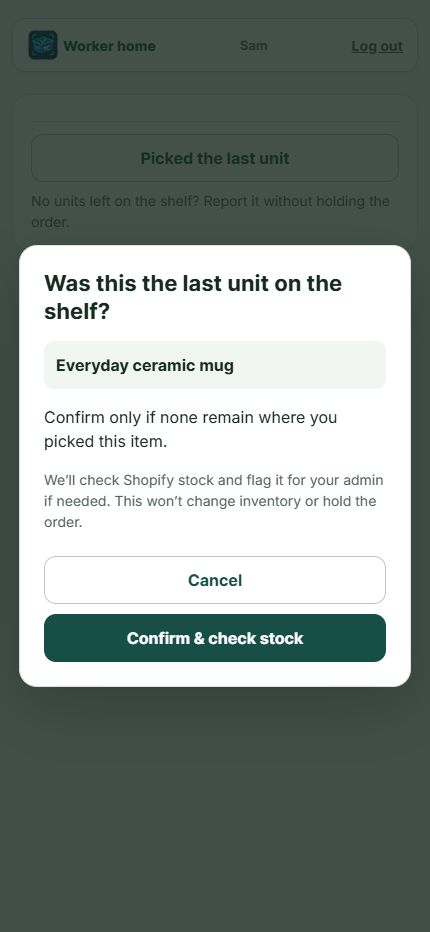
When Last-unit stock check is enabled, a worker who found the required items can choose Picked the last unit → Confirm & check stock during picking. After the report saves, if Shopify still shows Available stock or its stock check cannot be confirmed, review the resulting Stock review in Needs attention.
Check the correct picking location and the stock physically present. Other locations and units reserved for orders can explain a difference. Correct Shopify stock if needed, then Check stock again and Mark resolved after review. This stock review does not hold the order or its bin; the worker can finish packing while you investigate.
For a missing item, use the unavailable-item reporting steps. That report pauses the package; a last-unit report does not.
Find a closed issue
In Needs attention → Closed issues, search by order number or customer name and select a period. Dates refer to record closure; only retained history is available.
Bring in customer returns
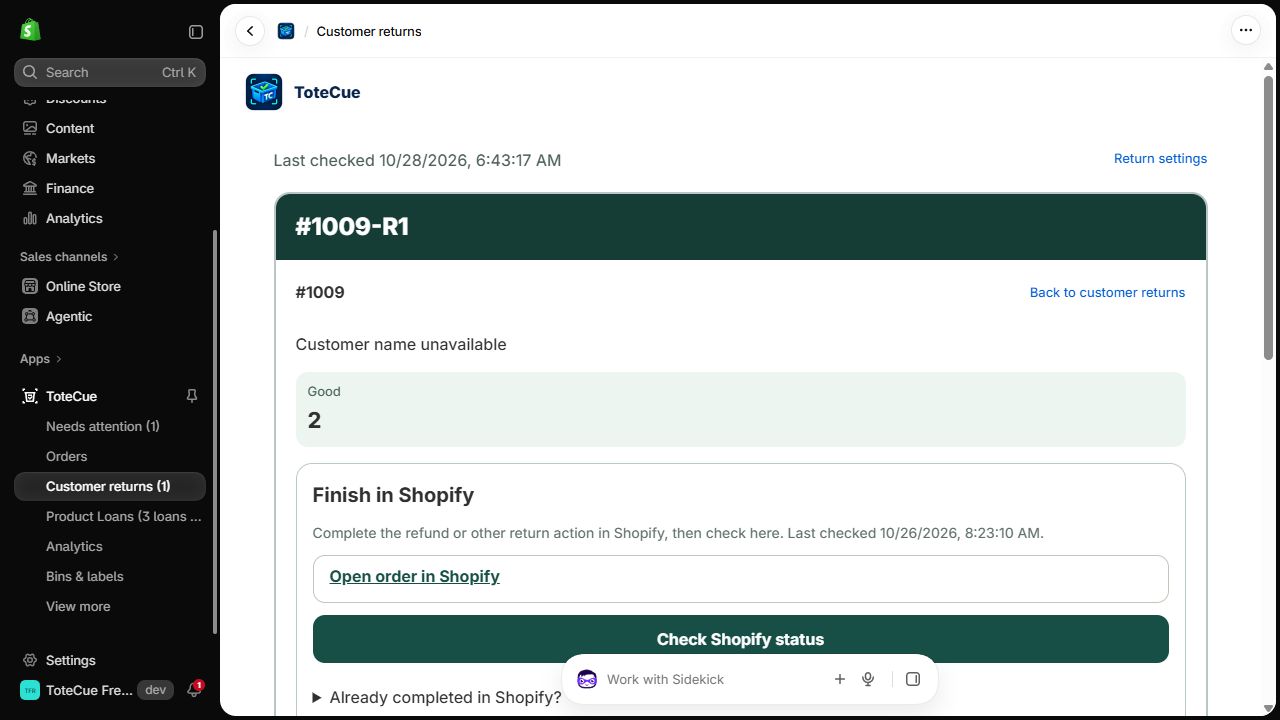
- An administrator opens Customer returns and chooses Update from Shopify.
- Confirm the expected Shopify return request is present. A request can arrive before its package; a refund alone does not create a return.
- Confirm the worker has return-receiving permissions. Tracking lookup, photos and batch intake depend on configuration.
Receive and review an arrival
Workflow illustration, not an app screenshot.
- Open Customer returns from Worker home. Choose Scan or enter tracking, Enter order number, or Browse Shopify returns. Order lookup uses Find in Shopify. For a package sent with stamps and no tracking number, use its exact order number; tracking is not required for order lookup or browsing.
- Check the matching order and return. With the physical package present, choose Receive and inspect this return. Searching or browsing alone does not record that the package arrived. If the package was already received, open its saved work rather than receiving it twice.
- Follow the item cards and record the quantities and condition that actually arrived. Continue a saved inspection reopens unfinished work. Arrival history records separate packages already received; it is not an extra required step.
- When photos are enabled, choose Save photo for each capture and wait for Photo saved. A selected or failed photo is not saved evidence. Save the inspection findings.
- An administrator reviews the findings and accepts or requests corrections. Complete any refund or inventory action separately in Shopify, then finish the related follow-up.
Browse shows up to 25 open returns you have permission to view. If the expected return is missing, use its order number or ask the administrator to refresh Shopify information. Do not identify a package by guessing a name or address.
Receive several packages before inspection
With batch intake enabled and tracking lookup configured, use Receive batch. Each matched scan records a physical arrival. Inspect those packages afterward; receipt does not complete inspection.
You are done when
Outbound held work is resolved and its bin released, or an inventory-only follow-up is resolved. For a return, the inspection and follow-up are saved and finished work appears in Completed returns. These records do not independently prove a Shopify refund.
If a return cannot be identified
Try the exact order number when tracking lookup is unavailable. If candidates are ambiguous, do not link the arrival by guessing. Other receiving tools includes tools for unidentified packages and batch receiving when available. Keep the package identifiable while awaiting review.
For a return without a matching Shopify return, open the received package and record what arrived, or choose Log a manual return and Start manual inspection for an offline return. Enter descriptions, quantities and optional SKUs, inspect condition, then choose Save inspection — send to admin when shown. An unidentified package can be linked to a matching return separately when available. Manual return logs remain separate from Shopify returns. An optional order number is a reference, not a verified match.
The administrator reviews Needs attention → Manual returns and accepts or requests corrections. Accepted work leaves the worker’s open queue; later arrivals or corrections can reopen review. Acceptance does not refund, restock or create a Shopify return. Keep customer names, contact details and shipping labels out of notes and photos.
Correct the same saved inspection
Open the same saved package, expand Inspection saved · view or correct, then choose Correct inspection. Do not create another arrival to correct an existing inspection.
In Adjust this item, Quantity present means what actually arrived. Damaged and Needs review are parts of that quantity. ToteCue calculates Good and Missing. Enter Why are you correcting this inspection?, then choose Save corrected inspection.
An accepted message from the earlier inspection does not approve your new entries. Wait for the new saved result.
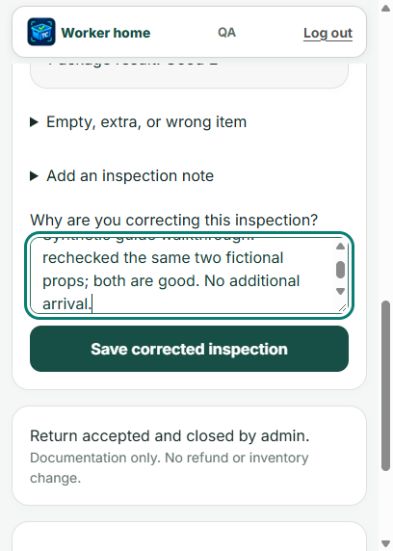
Wait for a new admin review
Wait for Inspection saved. A correction to an accepted manual return sends it back for admin acceptance. Read the corrected counts and current review status; the earlier approval does not cover those changed counts.
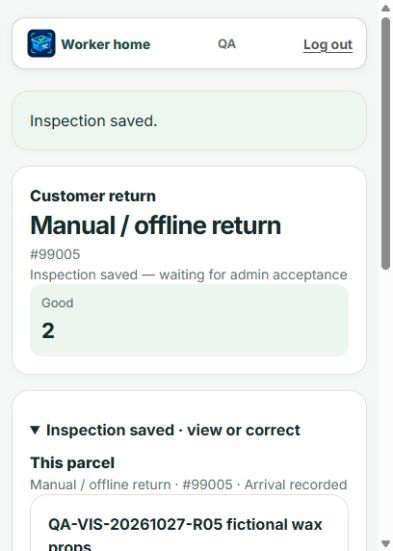
Accept a corrected manual return
The owner opens the saved manual return through Needs attention → Manual returns and reviews the counts and available notes or photos. Check I reviewed this return and any damaged, missing or uncertain items, then choose Accept and close.
Wait for Return accepted and closed. Acceptance does not issue a refund, change inventory or create a Shopify return. A later arrival or correction may reopen review, so check the current counts each time.
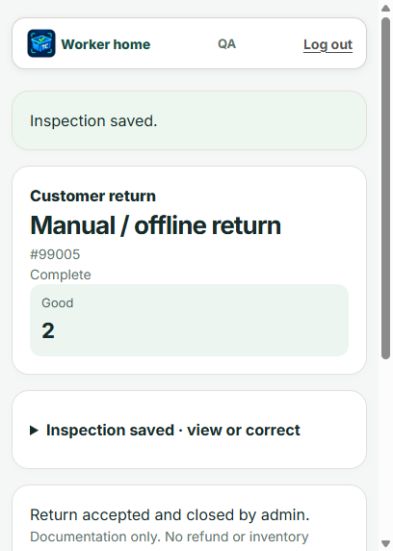
Related tasks
See Quality checks for label problems or Product Loans for temporary sample returns. Contact support if rechecks still fail.