STORE OWNER GUIDE / UPDATED NOVEMBER 2026
Choose your workflow settings
In this guide
Set clear packing checks for your team. Review each choice, then save your changes.
Before you change a setting
Open ToteCue’s Settings in Shopify Admin. Choose Save settings after making changes, then reopen the page to check the saved result. Changes are not saved automatically. The screenshots show saved example choices, not recommendations or starting defaults.
Shopify is ToteCue’s primary platform. TikTok and existing item-by-item external work keep their required photo, contents and full-label checks. New CommentSold bin tracking follows its saved store photo policy and requires a matching full label; it has no item-by-item checklist.
Choose Shopify packing photos
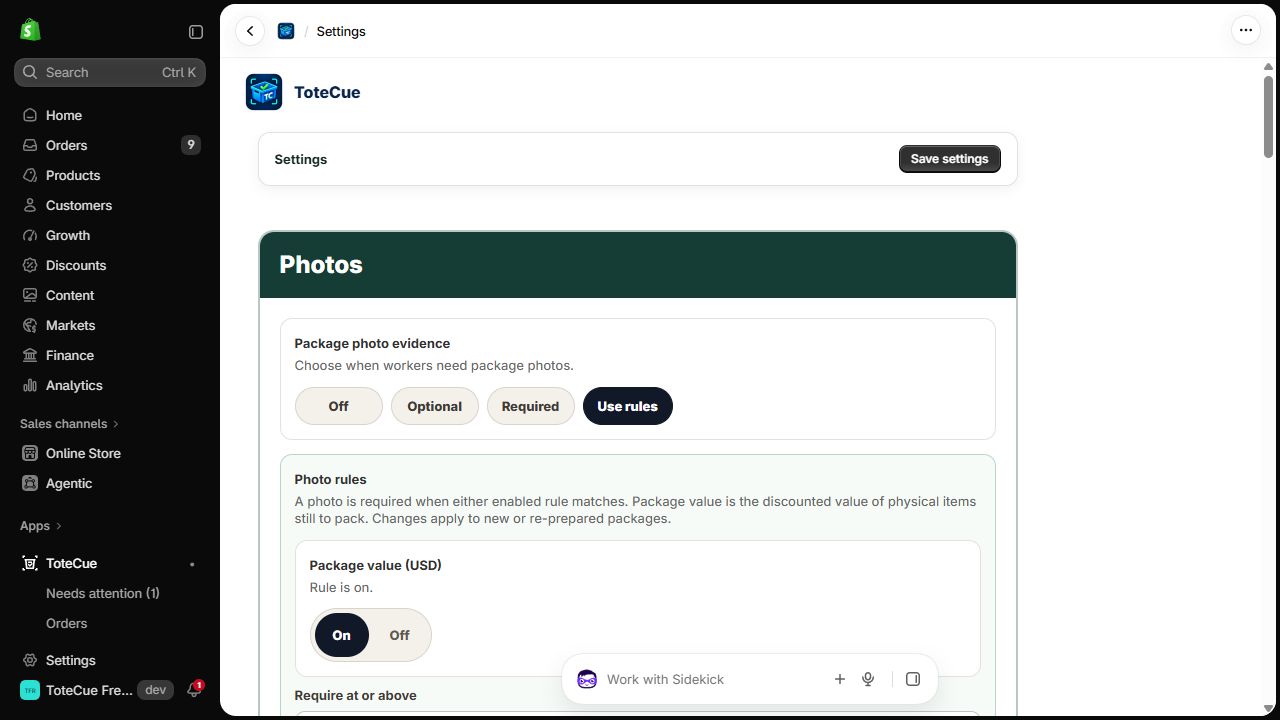
Package photo evidence starts Off. Choose Optional, Required or Use rules when your shop needs them. Required photos appear in the main packing steps.
For Use rules, enable Package value, Physical item quantity, or both. Enter a valid amount in the displayed currency or a unit threshold. A photo is required at or above the threshold. If both rules are enabled, either matching rule requires a photo. There is no value or quantity threshold until you configure one.
Review quality checks before choosing rules. A product catalog picture is not saved packing evidence.
Choose how long photos stay
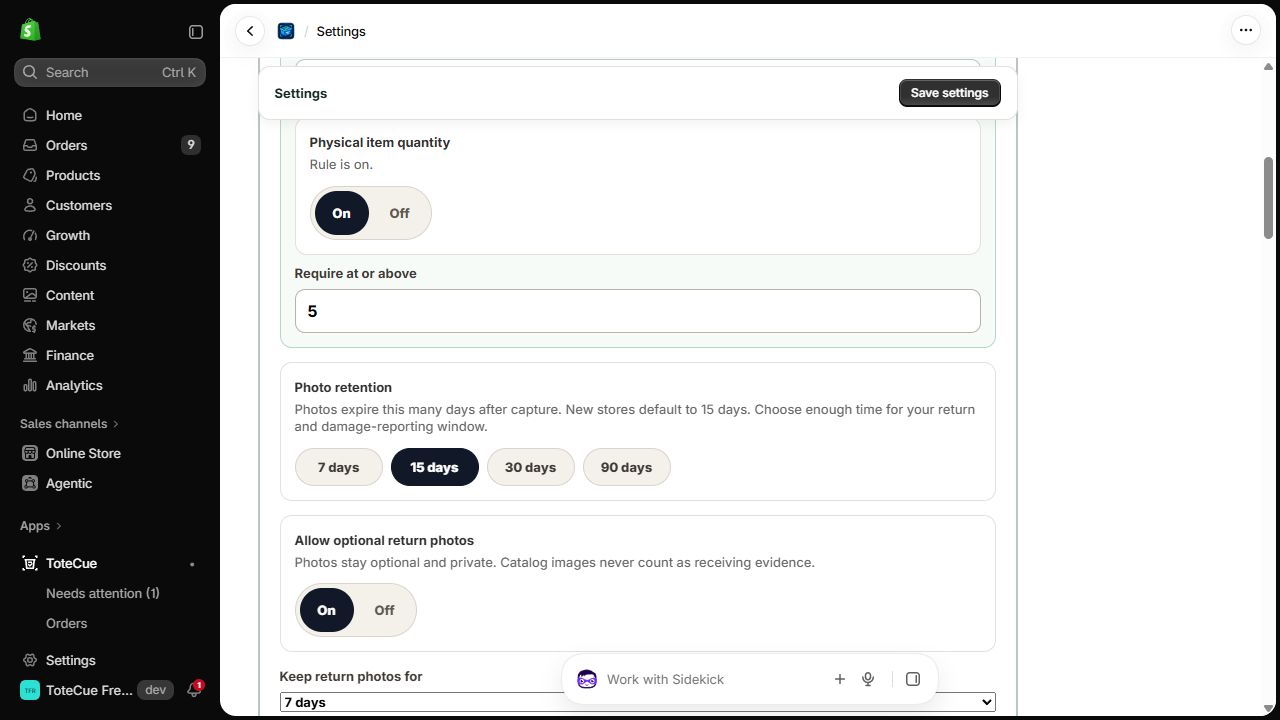
Photo retention starts at 15 days. Packing-photo choices are 7, 15, 30 or 90 days after capture. Retention is separate from the monthly photo allowance.
Allow optional return photos starts Off. When enabled, Keep return photos for starts at 7 days, with a 7- or 30-day choice. Return and packing photo retention are separate.
Check Shopify shipping labels
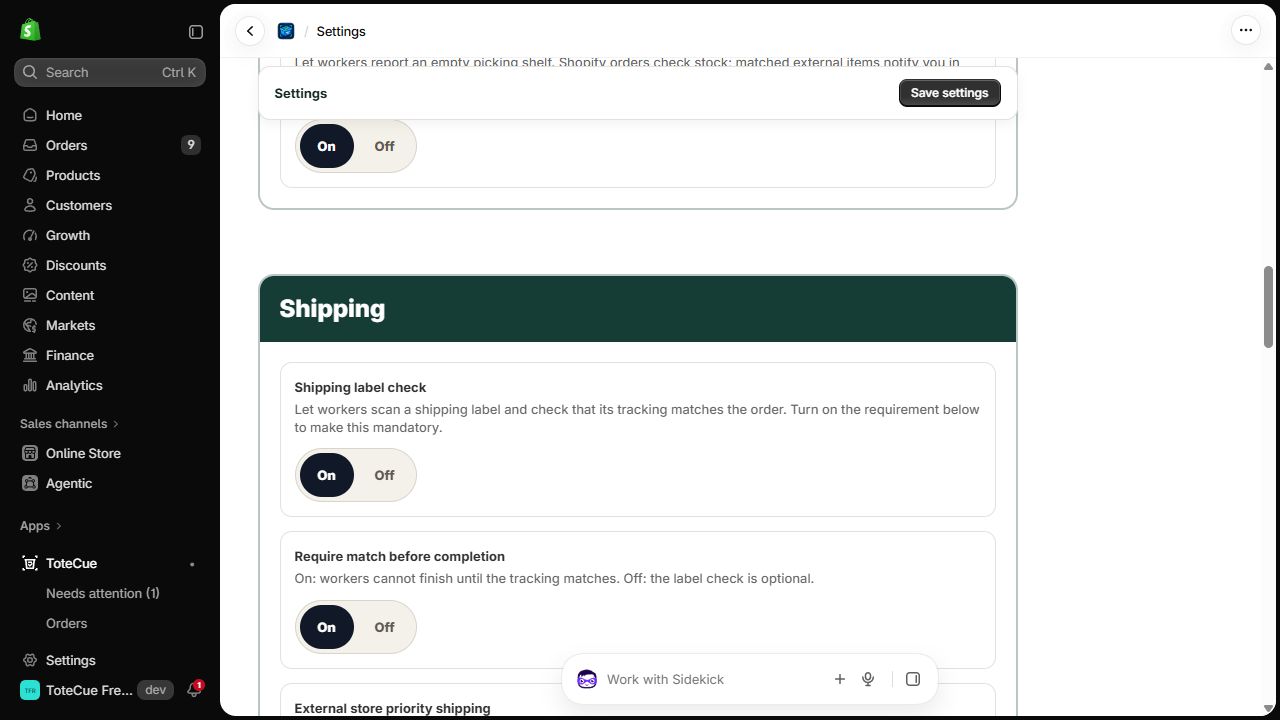
Shipping label check starts Off. Enabling it offers tracking checks; it does not buy or print labels. Require match before completion also starts Off and is available when label checking is enabled.
These choices apply to Shopify work. External packages still need their full tracking label captured and matched. Shopify’s offered last-four entry or recorded exception is not an external-order bypass.
Choose worker preferences
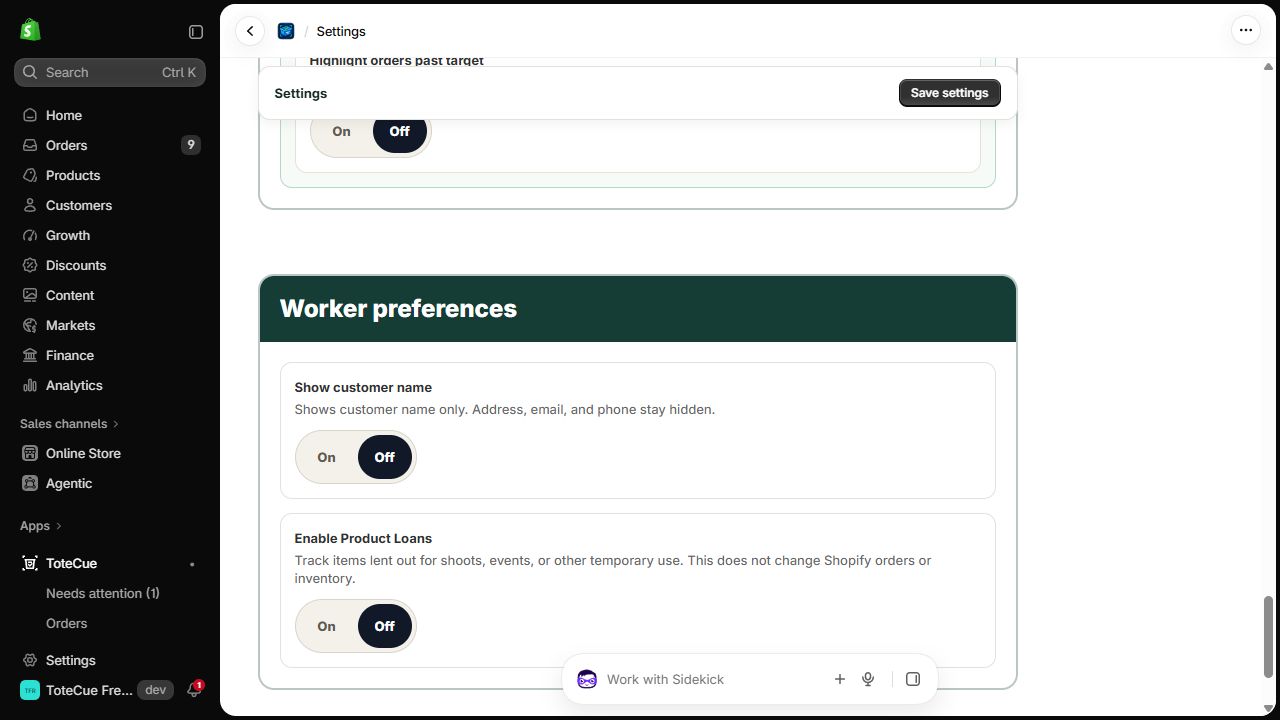
Customer-name visibility and Product Loans are separate saved choices. Product Loans starts Off. Enable it only if your shop lends physical goods, and give workers the needed permissions. Turning it off does not erase outstanding loan obligations; existing returns remain reachable.
Last-unit stock check starts Off. It lets a worker report finding the required goods but emptying the picking shelf. It does not pause the package or change stock. Existing alerts remain when the setting is turned off.
Enable customer returns when needed
Enable customer returns starts Off. It allows permitted workers to receive new return packages; refunds and restocking remain separate Shopify tasks. Existing work stays reachable when disabled.
Enable batch return intake starts Off and needs tracking lookup configured first. It lets workers record several arrivals and inspect them afterward. Turning it off preserves the receipts. Optional return photos and their retention are separate choices above.
Set priorities separately
Use order priorities to configure Shopify shipping methods and packing targets. External priority selections belong to each selling account. A method called Express is not automatically selected.
Pack priority shipping first starts Off, with no methods selected. Use Orders → Refresh orders, then Settings → Shipping → Update shipping method list to read methods from saved Shopify orders. Search filters those saved methods; it does not list every configured rate. This update does not change orders or save your choices. Select the exact methods, enable priority and Save settings. Workers can still choose other ready work.
Highlight orders past target starts Off. When enabled, enter 1–90 days. It highlights work older than the target, without blocking it or promising delivery. Unknown order dates stay neutral. Show customer name starts Off; when enabled it shows available names, while address, email and phone stay hidden.
Choose whether to use external stores
Use external stores starts Off. Turn it on under Settings → External stores to show the dedicated store and import tools. Shopify-only shops can leave it off.
Turning it off asks for confirmation and is blocked while unfinished external packages need attention. Use Review unfinished work, then finish or resolve those packages normally. Saved stores and history remain under their existing retention rules. This is separate from pausing imports for one store. See selling-store setup for the steps.
Save and check
Choose Save settings. Read the saved result and reopen Settings before explaining the rules to your team. If the result is uncertain, check the current saved choices before repeating the action.
Return to setup or picking and packing.