STORE OWNER GUIDE / UPDATED NOVEMBER 2026
Import TikTok Shop packages
In this guide
Prepare the supported export, check each complete package and wait for a saved result.
Before you start
Confirm eligibility with support before importing real TikTok Shop orders. For fictional files, follow Try fictional orders. Shopify is ToteCue’s primary integration.
Connect and prepare the correct TikTok store through ToteCue in Shopify Admin. Confirm these orders are not also being prepared through a Shopify queue. TikTok’s product names, variations, Seller SKUs and quantities identify the goods. CommentSold’s bin-tracking workflow does not replace TikTok’s item and photo checks.
Prepare the complete To ship file
Finish combining orders and prepare current shipping labels in TikTok or your shipping tool. Download the complete current To ship CSV with filters cleared.
Keep original headers, identifiers, tracking and every item row. Do not open and resave identifiers as numbers in a spreadsheet. One TikTok item row may contain several units. Workers must be able to identify the goods from the supplied product descriptions and variations.
The supported export uses To ship with Awaiting collection or Awaiting shipment, LIVE or Product cards order channel, Fulfillment by seller and TikTok Shipping. Preserve original Order ID, Package ID, product/SKU identifiers, descriptions, variation, Seller SKU, quantity, created time, status/channel, tracking, cancellation/return and warehouse/delivery columns.
Unsupported bundles, split orders, returns, conflicting tracking or unsupported shipping modes need correction or separate review. Do not rename values to make unsupported work appear supported.
Choose the file and check dates
Open Import orders, choose the intended TikTok store’s Import orders action, then select Orders to ship CSV. Review the preparation date in your shop’s time zone and the displayed account/current-label confirmations, then choose Preview import.
File-date timezone confirmation is separate from the preparation date. Confirm the displayed timezone statement only when you know it matches the export. If unknown, leave it unconfirmed; aging stays unknown rather than guessed.
Each import supports up to 200 packages, 300 orders, 1,000 item lines and 256 KiB (262,144 bytes). Processing limits may apply sooner. Use a smaller supported batch of complete packages rather than dropping item rows.
Preview the package groups
Expand the rows and check every order, item quantity, Package ID group and current tracking. Missing tracking excludes the whole package until corrected. A shared name or tracking value alone does not establish grouping.
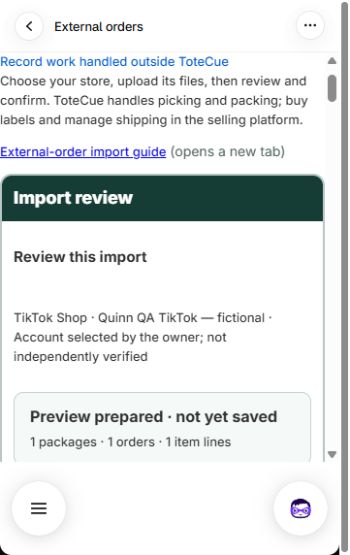
Review new, already saved, correction and skipped counts across the whole batch, including other pages and packages hidden by search. Confirmation applies to the entire reviewed batch. Change files needs a fresh preview; Change store clears the previous selection and preview. A preview adds no work. The screenshot below shows example data from an earlier import.
Wait for the saved import
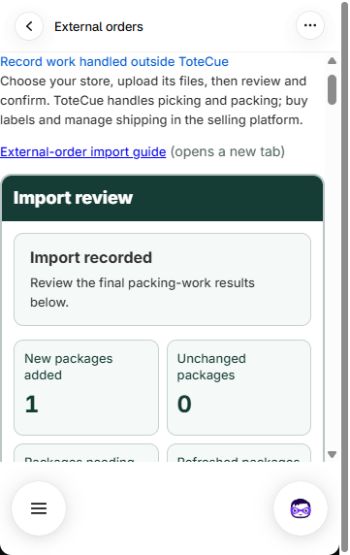
Complete the displayed account and current-label confirmations. For eligible new work, choose Confirm import within the displayed 10-minute preview window. Wait for Import recorded and read the saved counts.
Changing files, preparation date or account settings needs a fresh preview. Do not send workers to a package based only on a selected file or preview.
Understand repeat files and skips
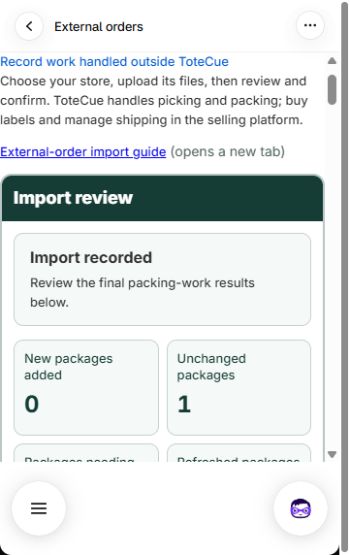
An identical repeat file does not create a second copy of unchanged saved work. The example below shows unchanged saved work before worker completion.
Current previews can show a whole completed package as Already completed · skipped, separate from Handled outside · skipped. Review the package and both new/skipped counts. Check the account confirmation and I reviewed the skipped packages. Keep them excluded and import only the other listed packages. when offered. If everything is skipped, choose Confirm skipped packages. Otherwise confirm only the eligible new work.
A saved receipt may correctly show zero new work. Keep completed packages excluded; do not alter group membership to reopen them. The repeat-file screenshot shows saved work before completion, not a completed-skip result.
Recognize items with or without a picture
TikTok’s product descriptions, variations, Seller SKUs and quantities identify the goods. An available unique Seller SKU match in the Shopify catalog can add a reference picture. Missing or duplicate matches use a placeholder and do not block picking. Check the ordered item and variant; a catalog picture never replaces a packing photo.
Finish the external packing checks
Watch how to pick and pack a TikTok Shop order.
One worker can pick and pack, or hand off the same labeled bin. Keep the complete package and all its grouped orders together.
Workers save the required packing photo and choose Confirm packed contents. Scan the full current tracking label. A clear camera read submits automatically when the current bin and form checks pass. If prompted, confirm the bin and choose Save label capture. For typed full tracking, give the actual reason and choose Save label capture. Read the match result, then choose Complete package separately. Wrong tracking must be corrected; Shopify’s last-four entry or exceptional override does not replace these checks.
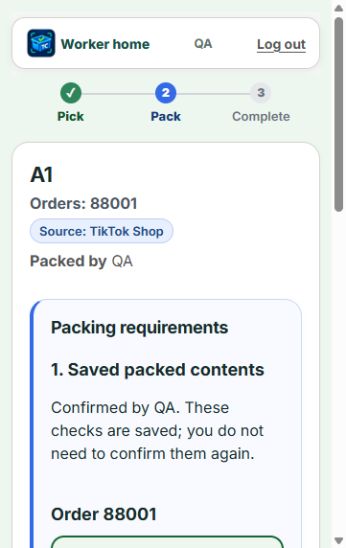
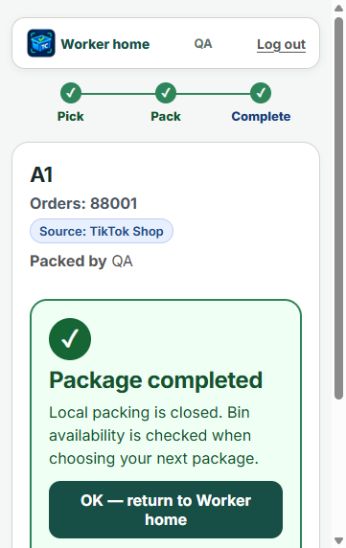
The first image below shows saved packed contents; it is not a picking screen or final completion. Wait for the saved completion result before emptying and reusing the bin.
Correct files or changed orders
Copy order references shown in correction lists. Prepare current labels or correct the source data, then upload complete fresh files and review again. Missing rows alone do not cancel, remove or rewrite saved work and do not prove shipment.
Follow explicit re-pick, contents-review, bin-merge or new-label instructions after source changes. For held work, use Review packing issues. Owner approval does not perform a worker’s physical check.
Use the separate cancellation update
When the account offers Update canceled orders, use a current All orders CSV and confirm that the cancellations are current. Review the matched saved packages before Confirm cancellation updates.
Supported full seller cancellations create removal checks for workers; unmatched historical rows add no work. Partial cancellations or changed-package cases may need review. An order missing from To ship is not cancellation evidence.
Keep marketplace shipping separate
ToteCue records local preparation. It does not buy postage, print labels, confirm carrier acceptance, sync inventory or mark the TikTok order fulfilled. Continue source-platform and carrier steps in your normal shipping tools.
Return to external order imports or contact support if the displayed result is unclear.