STORE OWNER GUIDE / UPDATED NOVEMBER 2026
Choose your packing quality checks
In this guide
If either enabled threshold is met → take a packing photo.
Illustrative settings, not recommendations. Applies to Use rules mode; photos document the package rather than automatically verifying it.
Check the items again as you pack. Add photos and check the shipping label when your store requires them. Choose the checks that suit your shop.
These settings describe Shopify packing. TikTok and CommentSold have their own photo and label checks.
Before you start
Your store administrator chooses these checks in Settings. Workers use a device that has been set up for ToteCue and follow the saved settings. For shipping checks, the order needs a tracking reference and a supported label/browser. Try the settings on a practice order first.
Check products and quantities
Use the product images, variant details and quantities shown by the app. Check the package after picking, even when the same worker performs both stages. The reusable tote keeps one order’s products together as the work moves between people.
Choose a packing photo policy
- In Settings, select a photo mode using the comparison below.
- If you choose Use rules, choose at least one item-count or item-value limit.
- Choose Save settings after selecting the mode or editing the limits.
- Review the saved policy before a practice order.
| Mode | Worker action | Exception |
|---|---|---|
| Off | No packing-photo capture. | Not applicable. |
| Optional | Add a photo when useful. | No required-photo override needed. |
| Required | Save evidence for each package. | Explicit saved-reason override is recorded. |
| Use rules | Save evidence when either enabled rule applies. | A saved reason records why the photo was skipped. |
Set quantity or value thresholds
With Use rules, choose when a photo is required: by item count, item value, or both. Turn on at least one rule. A photo is required when the package reaches either limit.
The value rule uses the remaining physical merchandise quantity and discounted item prices in your shop’s currency. Shipping, taxes and other fees are excluded. Review the saved value rule if your shop currency changes.
For example, a quantity rule of 5 applies to a package with five or more physical items. A value rule of 200 applies at 200 or more in the configured shop currency. These are examples, not recommended settings.
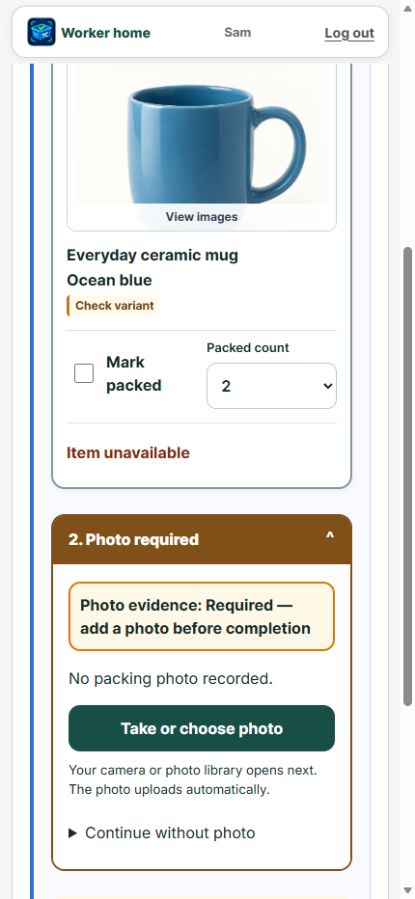
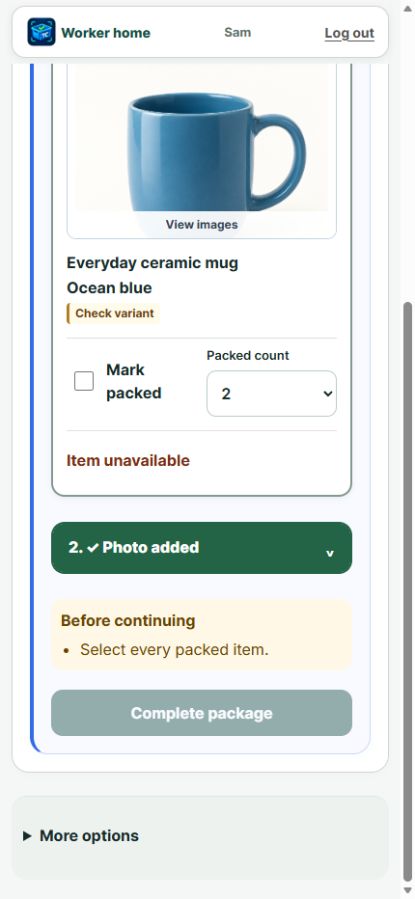
Workers see whether a photo is required or optional. Required photos stay in the main packing steps; optional photos are under More options when available. Take the picture and wait for Photo added before continuing. Capturing or selecting a picture alone does not save evidence. If saving fails, follow the retry instructions. A required photo needs saved evidence unless an explicit saved-reason override is offered and confirmed. An override is recorded as an exception, not as photo evidence.
Check a shipping label against the order
Workflow illustration, not an app screenshot.
In Settings → Shipping, turn on Shipping label check. The worker can scan a supported shipping label and compare its tracking with the order.
Turn on Require match before completion to require a matching result or an explicitly recorded exception when offered. With this requirement off, the check is optional.
Choose Save settings after editing either shipping setting. Enabling the check offers verification; Require match before completion requires the worker to satisfy the check or confirm the offered exception before finishing.
The check helps catch a label attached to the wrong order. It compares tracking; it does not independently validate the shipping address, buy postage or prove carrier pickup. If a label cannot be read or has no matching tracking available, follow the app’s recovery instructions rather than guessing.
Keep follow-ups visible
Use Needs attention for held packages and open issues. When the last item is missing or damaged, complete any necessary order or stock correction in Shopify, then recheck and resolve the ToteCue follow-up.
If a shipping label will not scan
- Check that this is the intended order’s label and that tracking is available for the order.
- Try Scan shipping label again with a clear, evenly lit barcode.
- If scanning is unavailable, choose Enter last 4 manually. Enter exactly the last four letters/numbers printed in the tracking reference, then choose Check last 4.
- Review the result. This checks only the last four letters or numbers, not the full tracking code. If more than one label could match, stop and ask the owner. Do not guess.
- For a mismatch or unavailable tracking, check the package and ask the administrator to correct the wrong label or source record. Use the exception below only when appropriate; never guess tracking digits.
If a required label check cannot be completed
When offered, expand Exceptional override, enter the reason and choose Confirm override. Use this sparingly, following your store’s instructions. Your identity, reason and time are recorded in package History. The result is Tracking overridden, not matched.
This does not complete the package, change Shopify tracking or skip item counts and photo requirements. A later failed check can block completion again. It does not automatically create a Needs attention task; the administrator reviews tracking exceptions in History and Analytics. Keep customer information out of the reason.
You are done when
The settings are saved and a practice order shows the expected required or optional checks. Required photos have saved evidence or an explicit recorded exception; required label checks have a matching result or an explicit recorded exception when offered. Photos show what was photographed; ToteCue does not judge whether the items are correct.
Related tasks
Continue with Picking & packing or resolve an issue. Contact support if a check stays blocked.